
What is a document revision?#
Overview#
A document revision is a saved record of a document’s content at a specific point in time. Every time a document is updated, a new revision is automatically created. Revisions allow you to track changes, revert to previous versions, and understand which AI analysis results correspond to each revision.
💡 Procurize.AI keeps a complete, immutable history of every document in your knowledge base.
Viewing Revision History (Classic Way)#
To view a document’s revisions:
Open the document from the Documents page or a category page.
Click on Revisions.
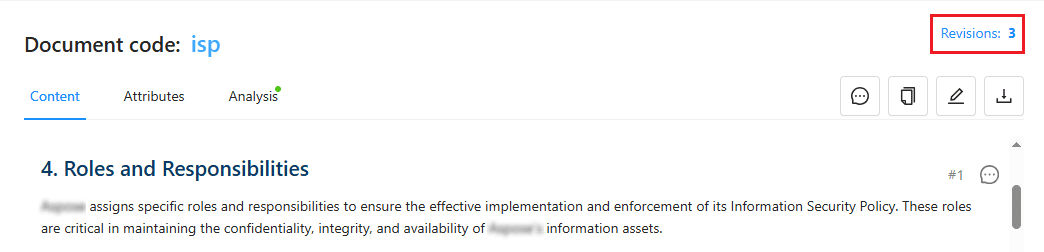
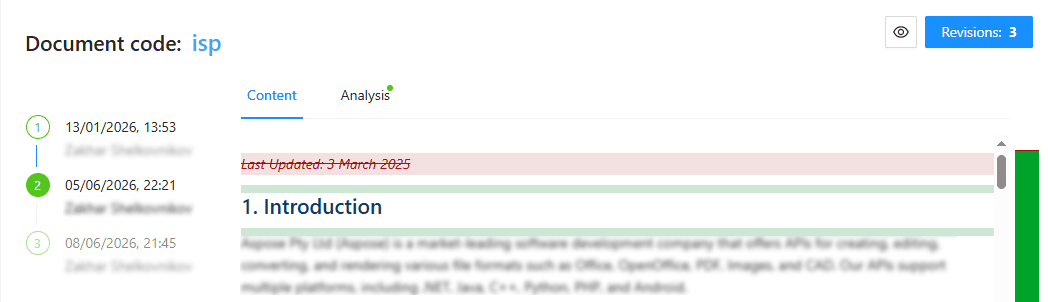
The revision list displays all saved revisions, including:
- Revision number
- Date and time of change
- Author of the revision
New: Revision Numbers Inside the Document Viewer (Fragment‑Level Tracking)#
Procurize.AI now makes revision tracking visually obvious while you read any document.
👉 Default view (compact mode)#
In document content view (when you open a file to read or edit), each fragment displays its own revision number above it.
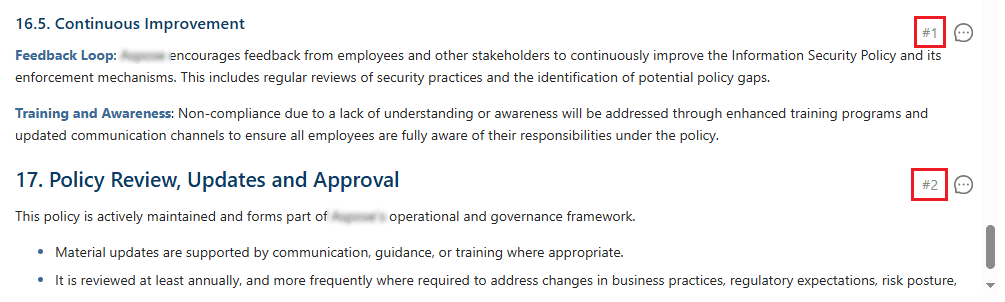
👉 Click any revision number → full details mode for ALL fragments#
When you click any revision number above any fragment, the entire document viewer switches from compact mode to detailed mode:
- Revision number (e.g., rev.7)
- Date of that revision (e.g., 2026-06‑05)
- Author (name of the person who made that change)
💡 This is a document‑wide toggle – one click reveals full context everywhere, so you can quickly scan who changed what across the whole document.
👉 Click again to collapse back to compact mode#
Click any revision number again → all labels return to showing only the revision number (compact mode).
Revisions and AI Analysis#
- AI-powered document analysis results are linked to a specific revision.
- Viewing a revision allows you to see the analysis results for that exact version.
- If a document is updated, a new revision is created and new analysis results should be generated to reflect the updated content.
🧠 Pro tip: If an AI warning appears above a fragment, click the revision number above that same fragment to see who introduced the conflicting text – and when.
Key Points#
- Each content change creates a new revision automatically.
- Revision history enables change tracking and rollback.
- AI analysis is revision-specific, ensuring accurate historical insights.
- New: In document viewer, every fragment shows its revision number.
- New: Click any revision number → view revision number + date + author instantly.
Frequently Asked Questions (FAQ)#
Q: Does every single word show a revision number?
A: Grouped by logical fragment. Adjacent text that changed together shares the same revision number.
Q: Does the expanded mode show the same information for every fragment?
A: Yes – each fragment shows its own revision number, its own date, and its own author (the person who last changed that specific fragment).
Q: What if a fragment never changed since document creation?
A: It will show the first revision number (e.g., #1). Clicking it will still show the original author and creation date.
Q: Are fragment revision numbers available in exported PDF/HTML files?
A: No – they are only visible inside the Procurize.AI web document viewer (to keep exports clean).
Q: Does this work on mobile/tablet?
A: Yes – tap any revision number to expand all labels; tap again to collapse.