
How to use AI Document Analysis#
Overview#
AI Document Analysis allows you to analyze documents in the knowledge base and identify internal inconsistencies as well as conflicts with other public documents. The analysis helps you improve document accuracy and maintain consistency across your organization’s policies and reference materials.
What’s New in AI Document Analysis (2026)#
Procurize.AI now delivers the most actionable document analysis on the market. All existing documents and every new file you upload benefit from:
- Automatic analysis – Runs the moment a document is created or its content changes (no manual start needed).
- Internal inconsistency citations – Each issue includes an exact quote + a link that jumps directly to the problematic section.
- External conflict previews – When your document disagrees with other knowledge‑base items, you see the conflicting quote(s) from the source document and can navigate to that other document & fragment.
- AI‑powered improvement suggestions – A dedicated section with concrete rewrite proposals to resolve every detected conflict.
- One‑click batch fixes – “Apply AI Suggestions” opens a dialog where you select and auto‑apply corrections.
- Inline warning badges – Warning icons appear directly above conflicting fragments in the document viewer, with a modal showing all related issues and ready‑to‑use fixes.
Starting an Analysis (Now Fully Automatic)#
You no longer need to click “Start analysis”.
- When you create a new document → AI analysis begins instantly.
- When you edit an existing document → As soon as you save changes, a fresh analysis runs automatically.
💡 The analysis processes in the background. You can keep working – results appear in the Analysis tab as soon as they are ready.
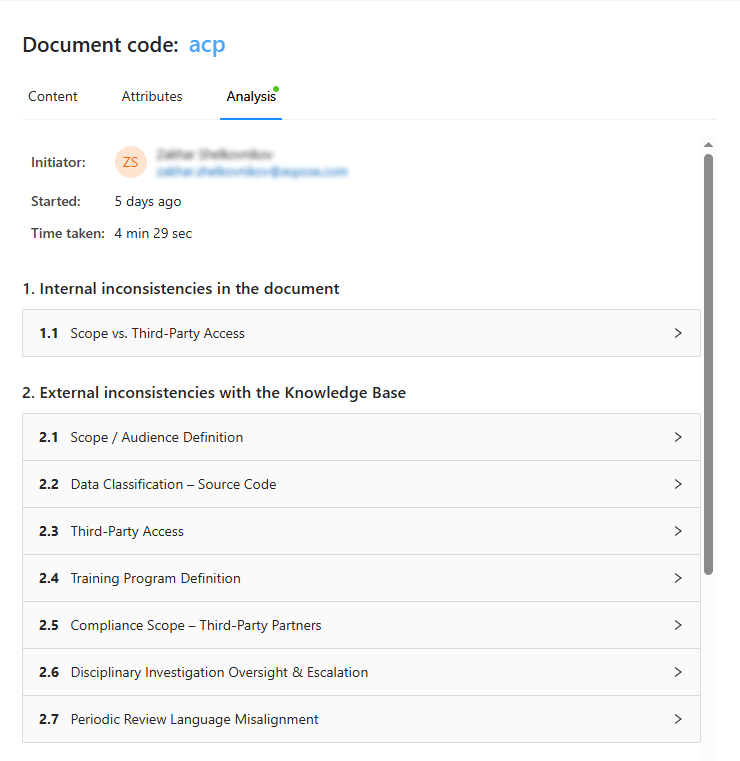
Viewing Analysis Results: Three Core Sections#
Open any document → Analysis tab. Results are organised into three powerful panels:
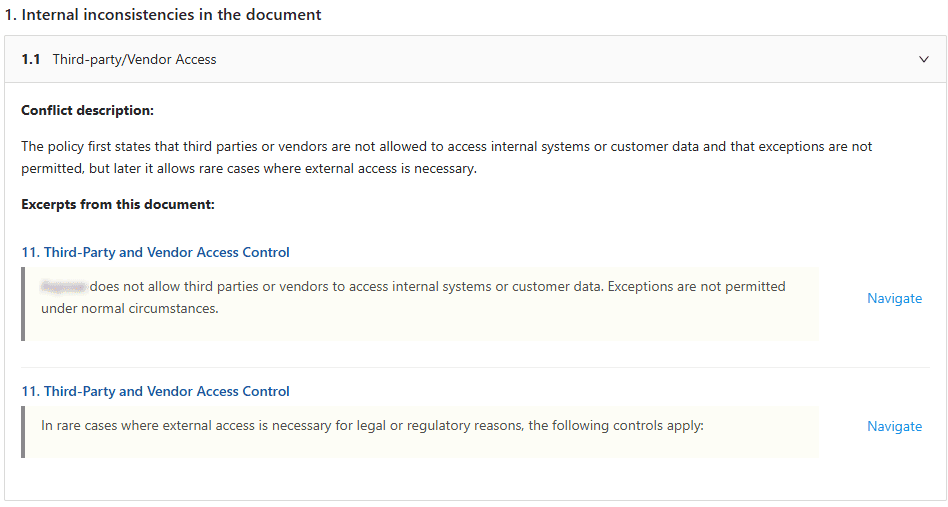
Section 1 – Internal Inconsistencies#
Conflicts within the same document (e.g. contradictory clauses, mismatched definitions).
For each inconsistency you get:
- Quote from the original document (exact text fragment)
- Quick‑navigation link → click to jump directly to that section in the document viewer panel.
Section 2 – External Conflicts (with your Knowledge Base)#
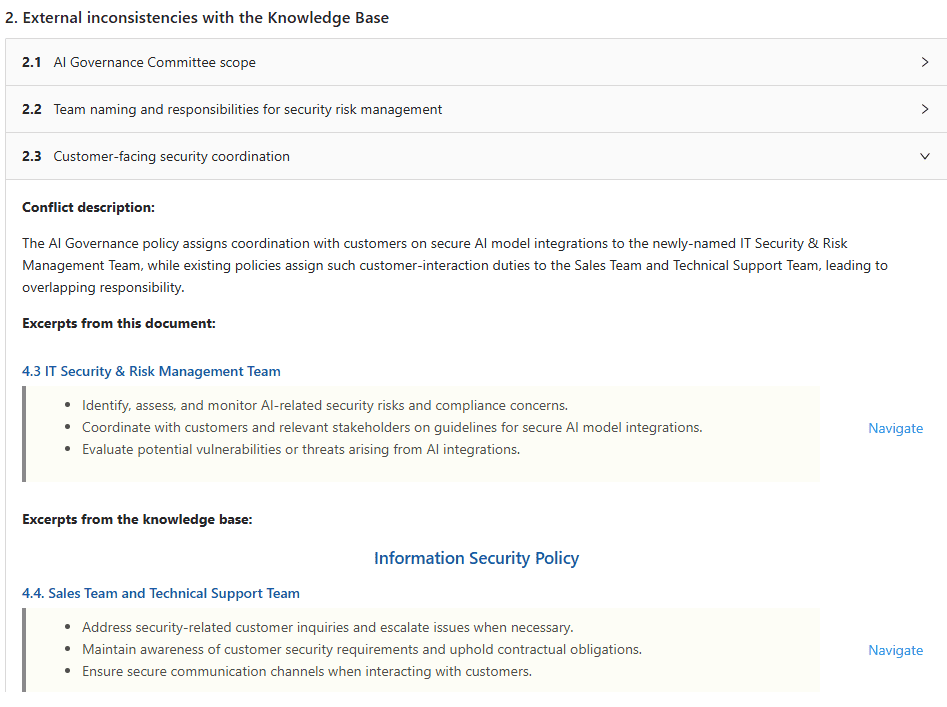
Your document contradicts one or more other public documents in the same Procurize.AI workspace.
For each external conflict you get:
- Quote from your current document (where the conflict originates)
- Fragment(s) from the conflicting knowledge‑base document (showing exactly what clashes)
- Quick‑navigation links → both to the source fragment in your document and to the other document + fragment in the knowledge base.
Section 3 – AI Suggestions to Fix All Conflicts (NEW)#
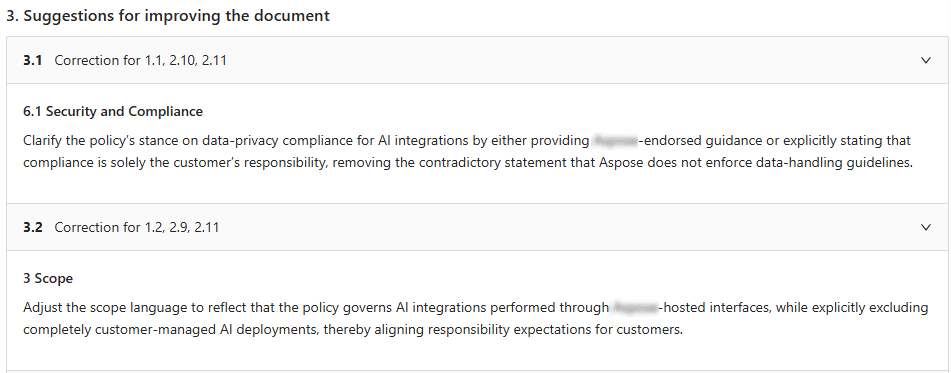
The AI does not just list problems – it gives you a concrete, human‑readable improvement plan:
- Bullet‑point or paragraph suggestions for rewording, restructuring, or deleting conflicting statements.
- Suggestions are designed to resolve every internal & external inconsistency listed in sections 1 & 2.
“Apply AI Suggestions” Button#
Below section 3, click “Apply AI Suggestions” → a dialog opens where you can:
- Preview each suggested change side‑by‑side with the original text.
- Select individual suggestions or apply all at once.
- Let AI automatically rewrite the document (or apply changes manually later).

💡 Perfect for batch‑fixing multiple compliance or policy conflicts in seconds.
Visual Conflict Markers Inside the Document Viewer (Real‑Time Warnings)#
While reading the document in the viewer panel, you will see:
⚠️ Warning icons placed above any fragment that contains one or more issues (internal or external).
- If multiple conflicts affect the same fragment → the badge shows the count (e.g. “2”).
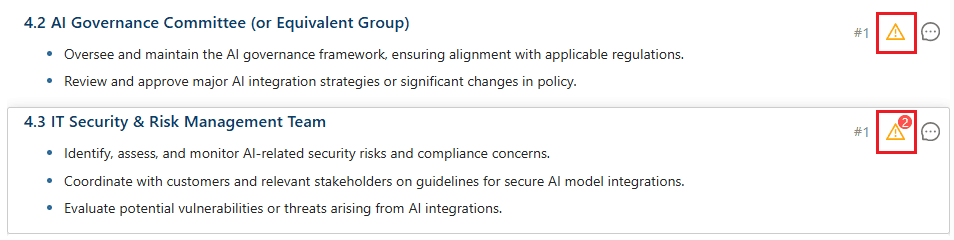
Click the warning icon → a modal dialog opens showing:
- Every inconsistency/conflict for that exact fragment.
- Full description (from sections 1 & 2).
- Proposed fix (same as in section 3, but filtered to this fragment).
- Option to apply the fix directly from the modal.
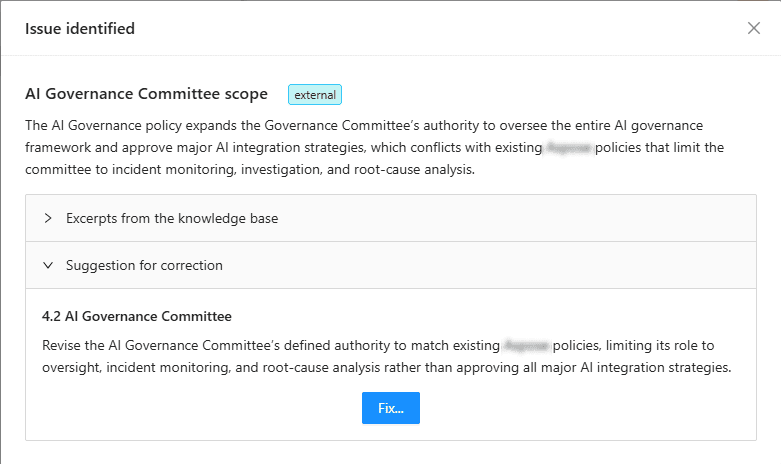
💡 No more guessing which sentence causes the red flag – you see the exact text + solution without leaving the viewer.
Using Analysis Results#
You can use the analysis findings to:
- Update and improve the analyzed document
- Resolve conflicts by editing other affected documents
- Ensure policy alignment across the knowledge base
Example Workflow – From Analysis to Clean Document#
- Upload a draft policy → AI analysis runs automatically.
- Open Analysis tab → see 2 internal inconsistencies and 1 external conflict with your master “Data Retention” policy.
- Click the quote under external conflict → jumps to the other document and highlights the clashing clause.
- Scroll to Section 3 → AI suggests: “Replace ‘delete after 90 days’ with ‘archive after 90 days, delete after 365 days’ to align with Data Retention policy v2.1.”
- Click “Apply AI Suggestions” → select the fix → document updates automatically.
- In the viewer → warning icons disappear after the next auto‑analysis confirms resolution.
Analysis Results and Document Revisions#
AI Document Analysis results are linked to the current document revision.
- If the document content changes, the existing analysis results are no longer shown in the Analysis tab
- Previous analysis results remain available in the Revisions panel for the corresponding revision
After updating the document, you can run AI Document Analysis again to verify that inconsistencies have been resolved.
Frequently Asked Questions (FAQ)#
Q: Do I lose old analysis results when the document changes?
A: No – previous results are saved in the Revisions panel for that specific document version. The new auto‑analysis runs on the latest revision.
Q: Can I still start an analysis manually?
A: Yes – if you disable auto‑analysis in workspace settings, you can manually click “Analyze now” in the Analysis tab.
Q: Does the AI understand legal/contract language?
A: Yes – Procurize.AI is trained on procurement, legal, and corporate policy documents. It identifies conflicts in terminology, obligations, dates, amounts, and governing rules.