
How to edit a document#
Overview#
Documents stored in the knowledge base can be edited at any time. Editing a document updates its content or attributes and automatically creates a new document revision, preserving the full change history.
Procurize.AI now makes editing smarter with:
- “Apply AI Suggestions” – directly integrate AI‑recommended fixes for detected inconsistencies
- Diff View – visually compare added vs. deleted text before you save
Opening a Document for Editing#
To edit a document:
- Select the document from the table on the Documents page — or — Open it from a category page.
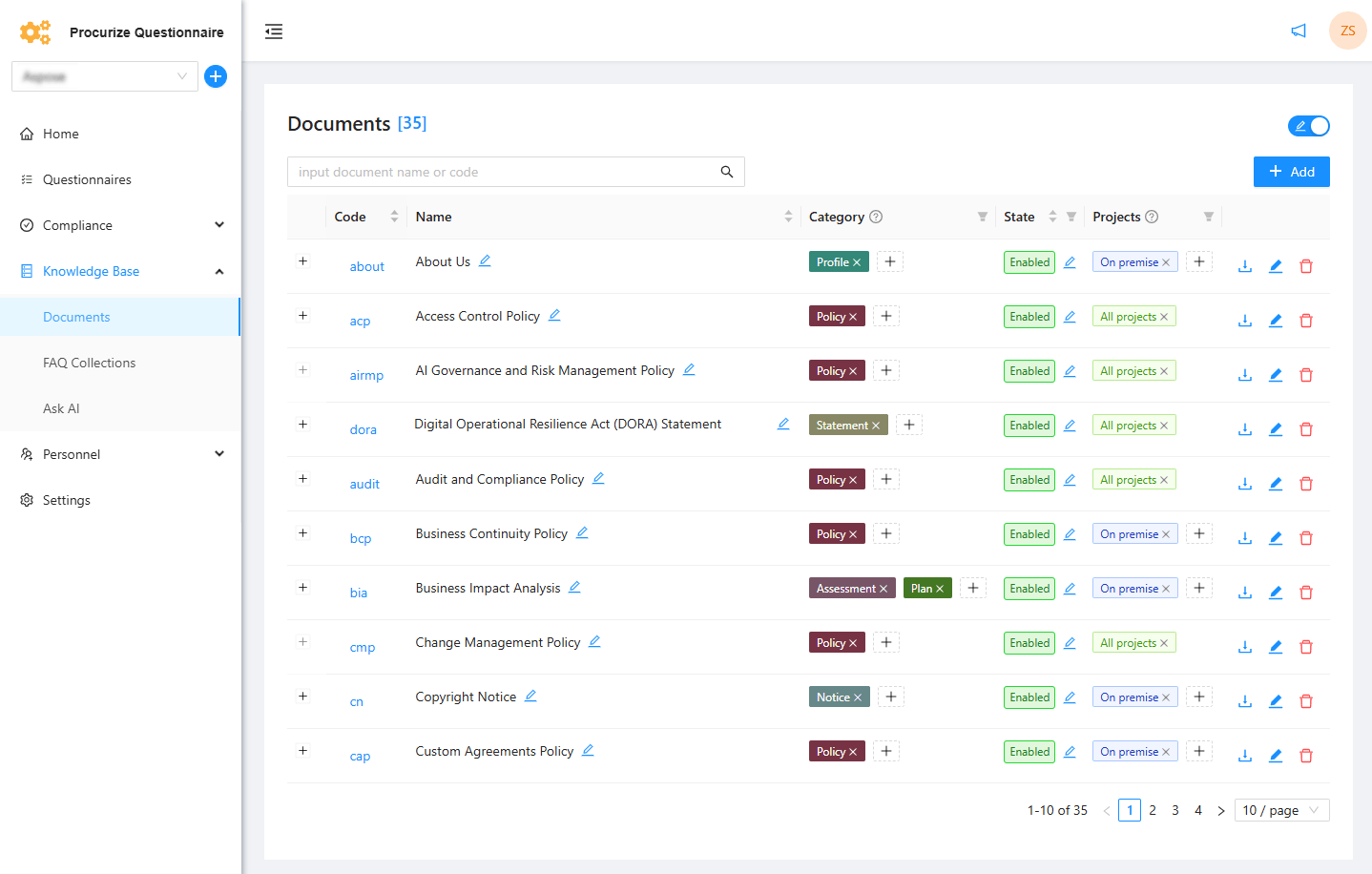
Open the Content tab.
Click Edit document to enable editing.
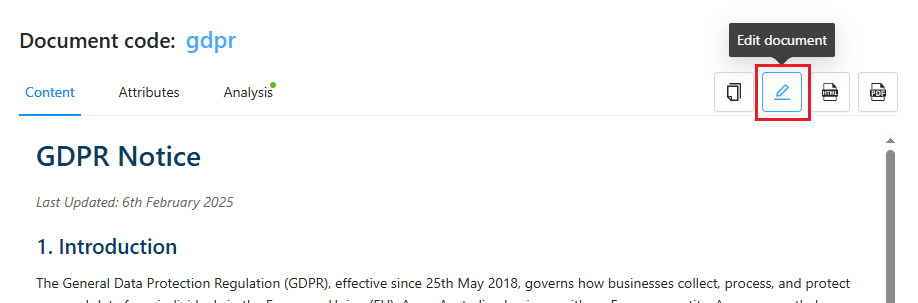
Editing Document Content – Core Actions#
While in editing mode, you can:
- Modify the document text directly (type, delete, paste)
- Paste updated content from any external source
- Improve structure using “Format with AI” (automatically reformats messy or unstructured text)
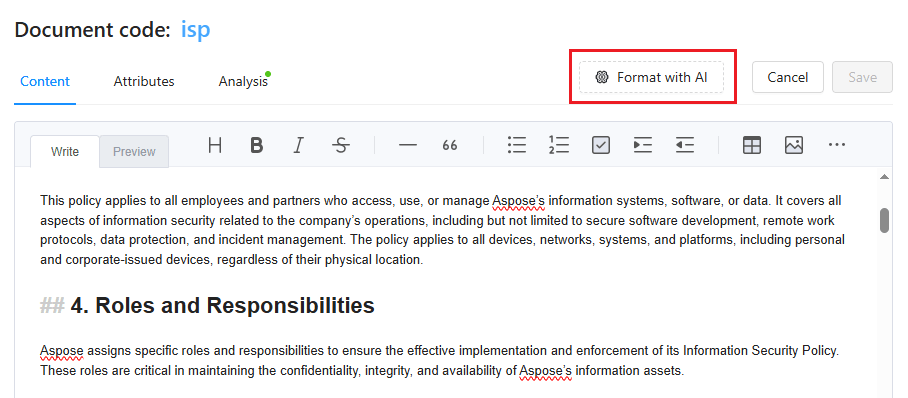
After making changes, click Save.
- The updated content is reindexed in the knowledge base
- A new document revision is created automatically
✨ New Feature #1: “Apply AI Suggestions” Button (AI‑Driven Fixes)#
If the current revision of your document has been analyzed by Procurize.AI and the analysis found:
- Internal inconsistencies, and/or
- External conflicts with other documents, and/or
- AI‑generated improvement suggestions (Section 3 of analysis results)
…then the “Apply AI Suggestions” button automatically appears in the editor toolbar.
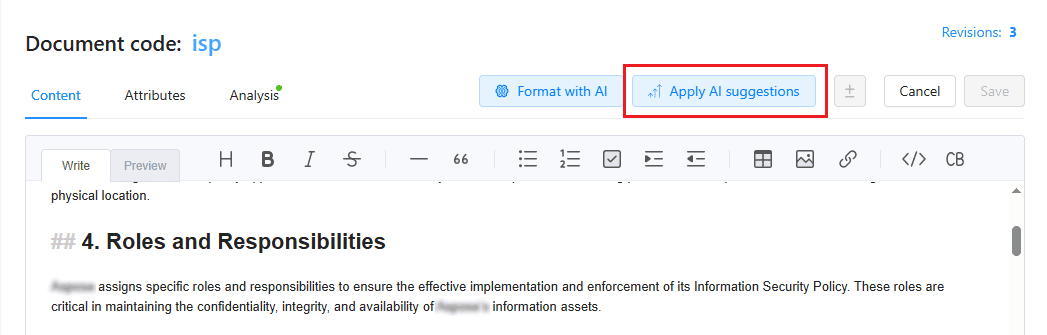
What it does#
- Click “Apply AI Suggestions” → a dialog opens showing all suggested fixes (rewording, restructuring, deleting conflicting statements).
- You can preview, select, or apply all suggestions at once.
- The AI directly modifies the document text in the editor according to your choices.
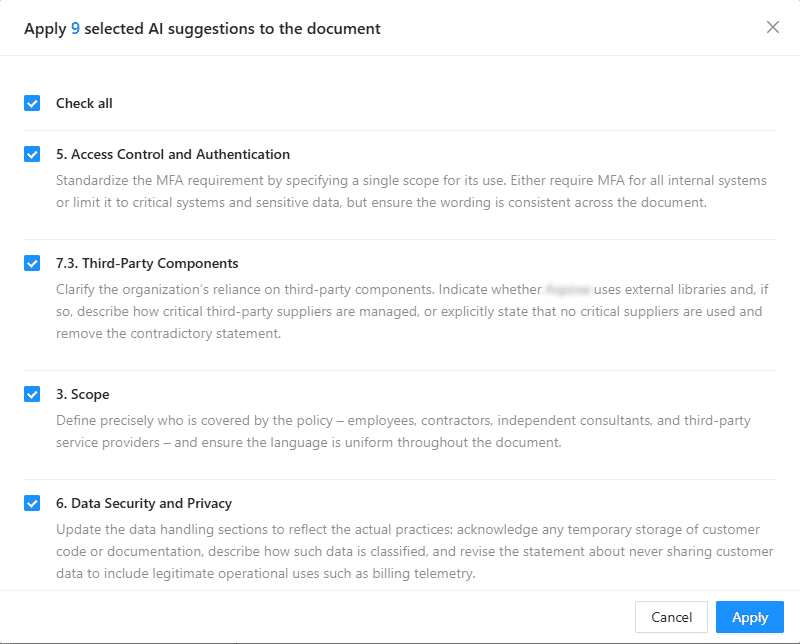
💡 This turns analysis results into instant document improvements – no manual copy‑pasting of recommended changes.
✨ New Feature #2: Diff View After ANY Change#
After any modification to the document in editing mode – whether you:
- Type or paste manually
- Click “Format with AI”
- Click “Apply AI Suggestions”
…a new “View diffs” button appears in the editor toolbar.
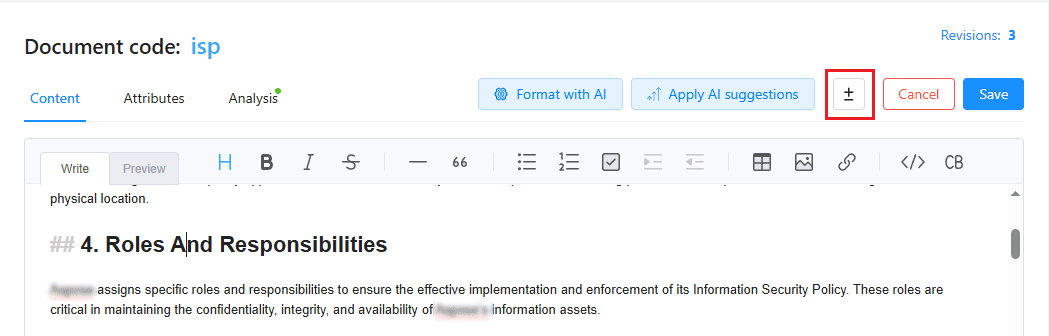
How Diff View works#
Click “View diffs” → the editor splits or overlays a visual comparison showing:
- Green highlighted fragments = added text
- Red strikethrough fragments = deleted text
Every addition and removal is clearly visible at a glance.
When Diff View remains available#
The Diff View mode stays accessible until you either:
- ✅ Save – all current changes are sent to the server, a new document revision is created, and Diff View is no longer needed (the changes become permanent).
- ❌ Cancel – all current changes are lost, the editor closes without creating a new revision, and Diff View disappears.
💡 While Diff View is available, you can switch it on/off as many times as you like. The underlying changes are not final until you click Save.
Document Revisions and Analysis (Important Reminder)#
- Each document update is stored as a separate revision.
- You can revert to any previous revision if needed.
- Revisions preserve historical content for audit and review.
- AI analysis results are linked to a specific document revision – after saving changes, run AI analysis again to get updated results for the new revision.
🧠 Pro tip: Use “Apply AI Suggestions” → Save → run a fresh AI analysis to verify that all inconsistencies are resolved.
Editing Document Attributes (Metadata)#
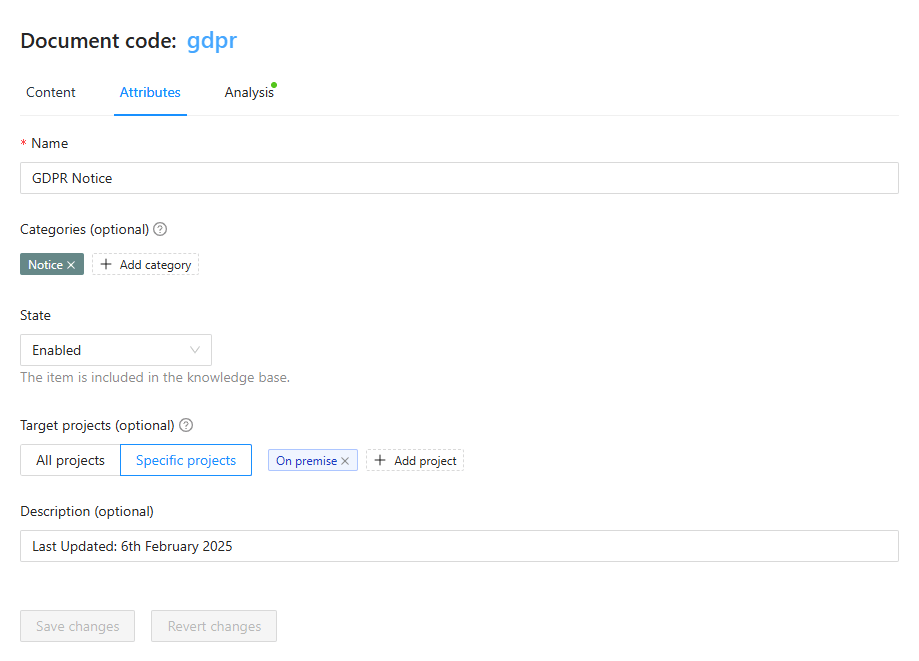
Document metadata can be edited from the Attributes tab (separate from content editing).
You can update:
- Display name
- Description
- Document state
- Document categories
- Target projects (workspaces)
Frequently Asked Questions (FAQ)#
Q: When does the “Apply AI Suggestions” button appear?
A: Only if the current revision has completed AI analysis and that analysis found at least one inconsistency with a suggested fix. If no suggestions exist, the button does not appear.
Q: Can I use “Apply AI Suggestions” multiple times?
A: Yes – each click reapplies available suggestions to the current editor content. However, after saving, a new analysis is recommended.
Q: Does Diff View show changes made in previous editing sessions?
A: No – Diff View only compares the original editor content (when you clicked “Edit document”) with the current unsaved changes in this editing session.
Q: Can I save without looking at Diff View?
A: Yes – Diff View is optional. You can click Save directly without ever clicking “Show Diff View”.
Q: What if I close my browser tab without saving?
A: All unsaved changes are lost – just like clicking Cancel.
Related articles#
How to improve document formatting