
How to Comment on Documents & Fragments#
Collaborate in context – discuss entire documents or specific paragraphs, tag teammates with @mentions, and get notified instantly.
Applies to: Procurize.AI Knowledge Base → Documents
User roles: Admin, Editor, Security Manager (can comment) | Auditor (view‑only)
Overview#
Procurize.AI now brings in‑context commenting from the Questionnaire module to your Knowledge Base documents. You can leave feedback, ask questions, or start a discussion:
- On the entire document – using the toolbar button
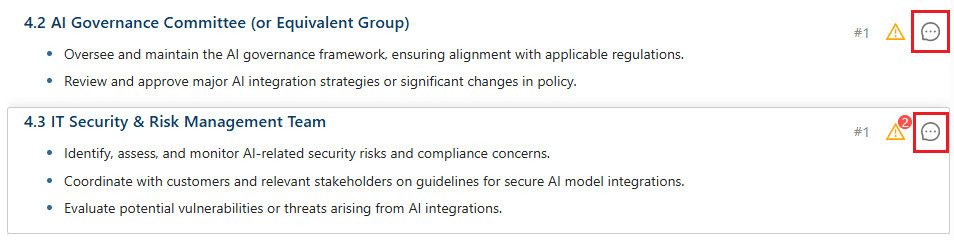
- On a specific fragment (paragraph, heading, list item, table cell) – using the comment icon above each fragment
All comments are visible to everyone. Users who are @mentioned receive notifications. Auditors can read all comments but cannot post or reply.
Who Can Do What#
| Action | Admin | Editor | Security Manager | Auditor |
|---|---|---|---|---|
| View all comments | ✅ | ✅ | ✅ | ✅ |
| Leave a new comment (document or fragment) | ✅ | ✅ | ✅ | ❌ |
| Reply to a comment | ✅ | ✅ | ✅ | ❌ |
| @mention another user | ✅ | ✅ | ✅ | ❌ |
| Receive notifications when mentioned | ✅ | ✅ | ✅ | ✅ |
| Follow a document (get notified of all new comments) | ✅ | ✅ | ✅ | ✅ |
🔒 Auditor role has minimum privileges – read‑only access to comments for compliance review.
👁️ “Follow” button is available to everyone – click it on any document to receive email/in‑app notifications for all new comments (not just @mentions).
Two Ways to Leave Comments#
1. Comment on the Entire Document#
Open any document → Toolbar → click “Leave a comment” (speech bubble icon).
- A comment panel opens on the right side.
- Type your message, @mention colleagues if needed, and post.
- The comment is tied to the document as a whole – not to a specific fragment.
Use this for: general feedback, approval requests, or questions that apply to the whole document.

2. Comment on a Specific Fragment (In‑Context)#
While viewing a document, each fragment (paragraph, heading, list, table row) has a small “Leave a comment” icon above it (on the right side).
Click that icon → a comment panel opens, pre‑linked to that exact fragment.
- The fragment is highlighted when the comment is active.
- Replies stay attached to the same fragment.
- Navigation from the comment list jumps directly to that fragment in the document viewer.
Use this for: suggesting a wording change, asking about a specific clause, or flagging an inconsistency in one sentence.
Replying to Comments & Threaded Discussions#
- Any comment (document‑level or fragment‑level) can have nested replies.
- To reply: click “Reply” under the comment → type your response → post.
- All replies stay grouped in a thread, keeping context clear.
💡 This works exactly like the Questionnaire messaging panel, but anchored to document fragments.
@Mentions & Notifications#
When you type @ followed by a username or email, Procurize.AI suggests users from your workspace.
- Mentioned users receive an email notification (and in‑app notification, if enabled).
- The notification includes: document name, fragment quote (if fragment comment), and your message.
- Clicking the notification link opens the document and scrolls to the exact fragment (or document header).
⚠️ Only users who can comment (Admin, Editor, Viewer) can use @mentions. Auditors cannot mention others (since they cannot post).
Viewing All Comments#
Everyone (including Auditors) can see all comments:
- Document‑level comments – visible in the right‑side comment panel (opened via toolbar).
- Fragment‑level comments – visible both in the comment panel and indicated by a small badge above the fragment (showing comment count).
- Click any comment in the panel → document scrolls to the related fragment (or document top for document‑level comments).
Example Workflow – Reviewing a Contract#
- Legal Lead (Editor) opens a supplier agreement → clicks “Leave a comment” above the indemnification paragraph.
- Types:
@John_Procurement Is the liability cap correctly set to $500k? This conflicts with our standard policy. - John (Viewer) receives an email notification → clicks the link → sees the highlighted paragraph.
- John replies:
Good catch – should be $1M. I’ll edit after we confirm. - Auditor later opens the same document, reads the entire thread, but cannot post.
All communication stays inside Procurize.AI – no lost emails or Slack threads.
Commenting vs. AI Analysis – How They Work Together#
| Feature | Purpose |
|---|---|
| AI Analysis | Automatically detects inconsistencies & suggests fixes |
| Comments | Human collaboration – ask questions, propose changes, request clarification |
You can leave a comment on a fragment that has an AI warning – for example: “AI says this conflicts with policy X – can we review together?”
Frequently Asked Questions (FAQ)#
Q: Can I edit or delete my own comment?
A: Yes – but only if no one has replied to it. Once a comment has any reply, editing and deletion are disabled to keep the thread consistent.
Q: What happens to comments when a fragment is edited?
A: The old fragment is marked as “Deleted”. If it had comments, they remain visible in the global comment panel after you enable “Show deleted sections” (this option appears only when such fragments exist). You can still view and reply to those comments. Fragments without comments are removed permanently.
Q: Can I reply to a comment on a deleted fragment?
A: Yes – with “Show deleted sections” turned on, the reply button remains active.
Q: Do comment threads survive document updates?
A: Comments on unchanged fragments stay attached. Comments on edited fragments move to “Deleted” state (see above).
Q: Can I get notified of any new comment without being @mentioned?
A: Currently, only @mentions trigger notifications. Use the “Follow” button to watch a document.
Q: What happens when an Auditor tries to post a comment?
A: The “Leave a comment” button is hidden/disabled. Auditors are read‑only for comments.
Q: Is commenting available in the Questionnaire module too?
A: Yes – the Questionnaire has a separate messaging panel. This article covers Knowledge Base documents only.
Related articles#
How to use AI Document Analysis